TUVYT Logo

TUVYT

Timely Unified Vehicles for Your Transit.

From

FUERZAFORGE

"Ride faster. Travel smarter. Move everything."

Loading User Guide... Please wait
TUVYT User Guide - Step-by-Step Instructions for Passengers, Business Pro & Chaperones. • "Ride faster. Travel smarter. Move everything." • FuerzaPay Instant Settlement & Wallet • Non-Route Rides, Route Commuter, Backhaul, Cargo & Private Hire Workflows
Manual & Instructions

Complete TUVYT User Service Manual

Your master reference guide for navigating the TUVYT ecosystem. Explore exact operational workflows for passengers, route commuters, roundtrips, cargo shipments, business pro, and chaperones.

Official Video Tutorial Showcase

Watch How TUVYT Works in Action

A complete visual walkthrough covering passenger ride requests, swipe-to-confirm, audio alerts, and driver matching.

TUVYT Walkthrough Video Player Streaming HD Service Tutorial
User Type 1

Passenger: Non-Route Based Rides

Step-by-step instructions for booking motorbikes, 3-wheelers (Bajaji), and point-to-point urban taxis.

Passenger Non-Route Ride

Non-Route Ride Workflow

  • 1Click Where To, on the app home screen.
  • 2Choose your exact Pickup and Destination, points.
  • 3Select your desired Available Category, such as Motorbike, Bajaji, or Taxi.
  • 4View the Show Price and default Wallet Pricing.
  • 5Choose your suitable Payment Method, including Cash, MNO, or Wallet.
  • 6View Route Information by clicking the 'i' icon.
  • 7Confirm the Trip, check the pricing structures of Equity and Fair.
  • 8Select an option like Predefined or Metered, where prices update discounts automatically.
  • 9Nearby 3km drivers receive a blurred request, choose the right option or review a driver price suggestion.
  • 10Confirm selection by swiping right on the confirmation button.
  • 11Driver receives an active request with a ringtone, driver confirms and navigates to pickup.
  • 12Driver confirms pickup, user hears ringtone, both travel to drop-off.
  • 13Driver confirms drop-off, user hears ringtone again, user pays, rates driver, and returns to dashboard.
User Type 1 (Continued)

Route-Based Commuters & Regional Buses

Scheduled daladalas, urban rail transit, and intercity regional bus bookings.
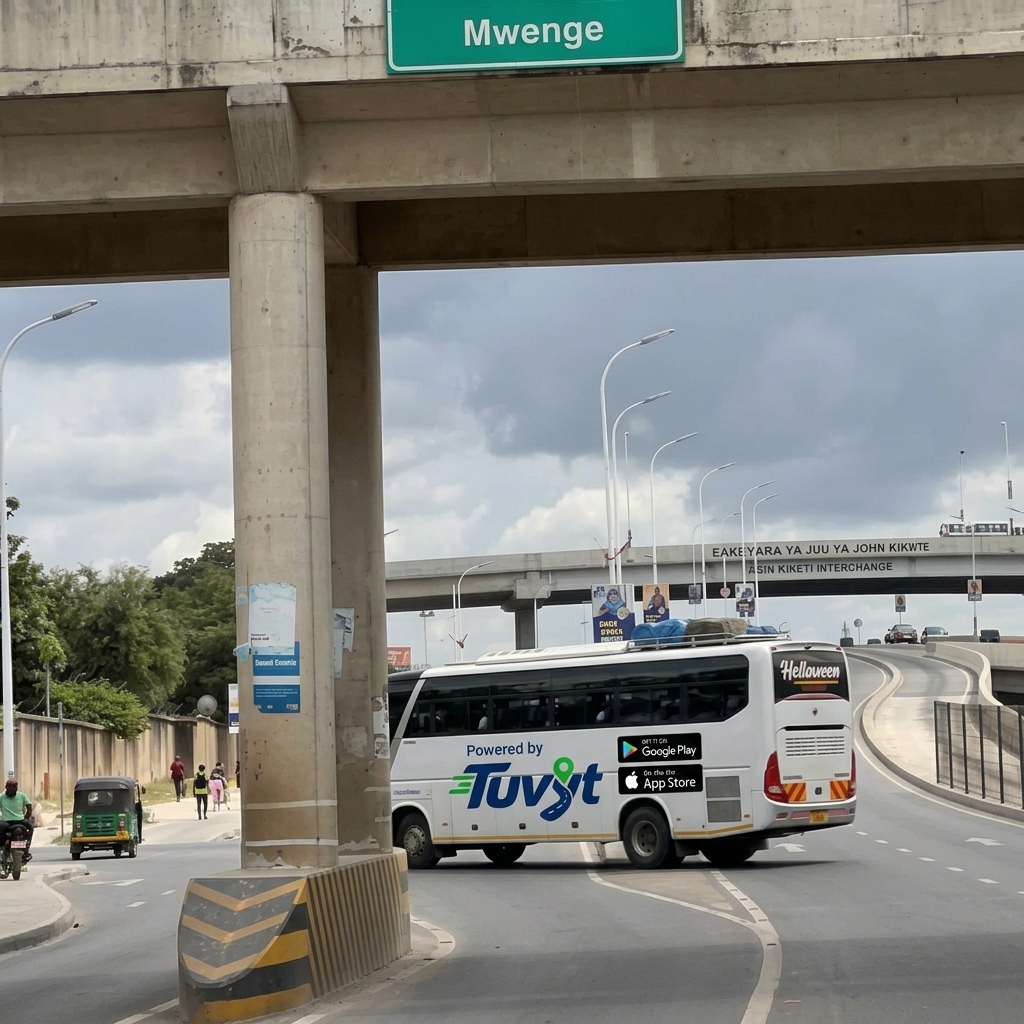
Route Commuter Workflow

  • 1Click the specific Route on the app carousel.
  • 2Choose your exact Destination stop.
  • 3See the calculated Price.
  • 4Choose between Metered or Fixed tariff options.
  • 5Confirm to Pay instantly, or for Regional Buses, select the option for Official Booking to reserve your seat ticket.
Route Based Commuter Buses
User Type 1 (Freight & Return)

Backhaul, Roundtrip & Cargo Shipments

Maximize returning vehicle capacity and post commercial shipments or parcels seamlessly.

Backhaul and Cargo Requests

Backhaul & Cargo Workflow

  • 1Click Request on the roundtrip/backhaul interface.
  • 2Enter trip details and Post your travel or shipment request.
  • 3If a perfect match is available, the driver confirms and sends back an offer.
  • 4Accept the offer, driver proceeds to pickup, completes drop-off, and you rate the driver.
  • 5Cargo Requests are managed in the exact same screen by selecting Post Shipment for parcels, goods, or commercial haulage.
User Type 1 (Charters)

Private Hire (7+ Seats Vehicles)

Group delegations, family excursions, and custom vehicle charters.
Private Hire Workflow

  • 1Click Private Hire on the services menu.
  • 2Enter the number of seats wanted, 7 seats and above.
  • 3Pick the matching vehicle fleet.
  • 4Driver receives the request and submits a price offer.
  • 5Confirm the offer, proceed to pickup and drop-off following the standard journey flow.
Private Hire 7+ Seats
User Type 2

Visitor Passengers Mode

Tailored for tourists, out-of-town visitors, and travelers exploring unfamiliar cities.

Visitor Passengers Mode

Visitor Mode Workflow

  • 1Enable Visitor Mode on the app settings or welcome screen.
  • 2Browse and pick popular places, landmarks, or tourist destinations.
  • 3Nearby drivers receive the request instantly.
  • 4Proceed with the normal non-route process including matching, pricing, swipe confirmation, and drop-off.
User Type 3

SmartTuvyt Business Pro

Empowering local merchants, hotels, restaurants, and shops with referral earnings and transit integration.

Business Pro Workflow

  • 1Business owners register the business by entering their exact physical location.
  • 2Upload business documents for compliance review.
  • 3Wait for admin approval.
  • 4Get paid referral commissions per transit drop-off or passenger visit to your business area.
SmartTuvyt Business Pro
User Type 4

Chaperone Services (Market, Gym & City Travels)

Professional transit escorts and assistants for market shopping, gym visits, and city navigation.

Chaperone Services

Chaperone Registration & Workflow

  • 1Select your specialty such as Market Chaperone, Gym Chaperone, or City Travel Chaperone, as all share the same registration architecture.
  • 2Register and access your dedicated Chaperone Dashboard.
  • 3Upload personal verification documents.
  • 4Wait for admin account approval.
  • 5Go online to receive escort and assistant requests in non-route areas and visitor mode.
Get on Play Store Download App Store